
 Live demo
Log in to Copperline Electric.
Two working apps, the same software our customers use, filled with a made-up electrical contractor's data. Pick a login below and click anything.
RH
Ryan HaleOwner
AR
Alex RiveraOffice admin
JL
Jordan LeeProject manager
MD
Morgan DiazForeman
SP
Sam PatelElectrician
TB
Taylor BrooksApprentice
The Copperline crew. All made up.

Copperline ManagementThe office app, best on a laptop or tablet
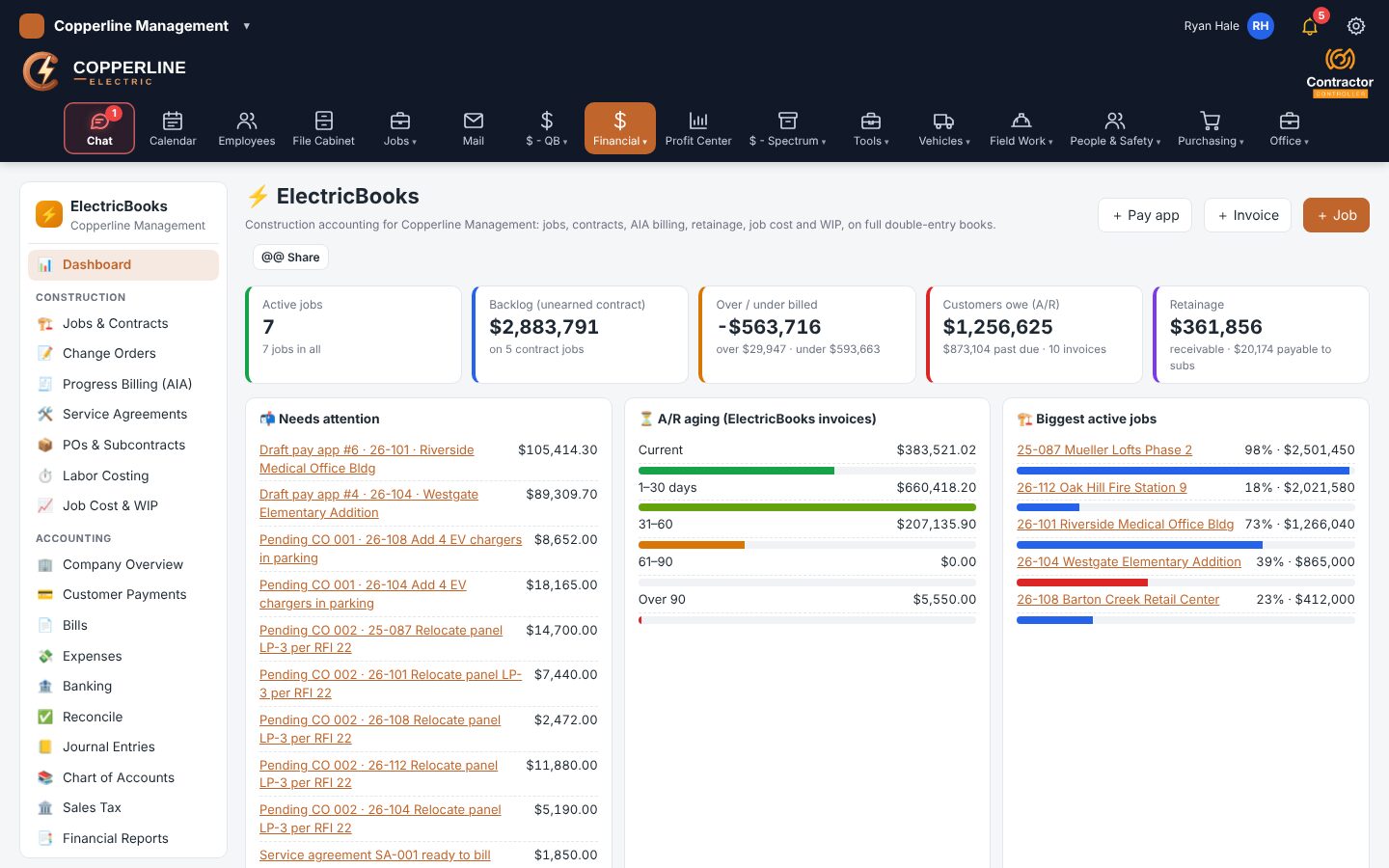
Jobs, money, tools, trucks, scheduling, safety, SOPs and user rights.
us4-app-condemo-clm.netlify.appCopperline FieldThe crew app, best on a phone
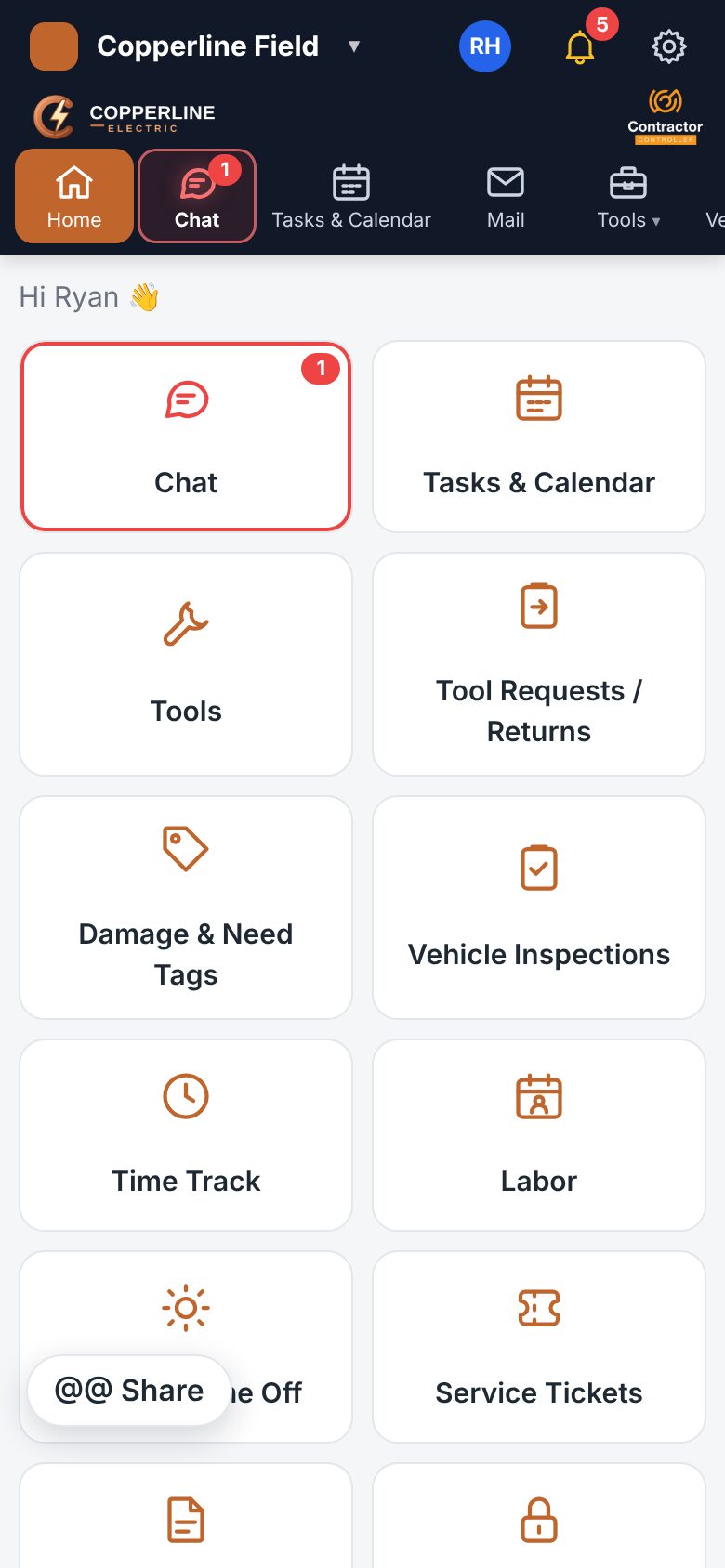
Time, tickets, tools, inspections, safety reports, training and chat.
us4-app-condemo-clf.netlify.appDemo logins
Pick a person, then sign in with the username.
Each login works on both apps. Try two of them to see how user rights change what a person sees.
| Person | Username | Password | Best on | What they can see |
|---|---|---|---|---|
| Jordan Lee Project manager | jordan.lee | Copperline2026! | Management or Field | Full access to every module |
| Morgan Diaz Foreman | morgan.diaz | Copperline2026! | Management or Field | Every module; Employees view only |
| Sam Patel Electrician | sam.patel | Copperline2026! | Field | Financial, Spectrum and Employees hidden; own time and tickets on Field |
| Taylor Brooks Apprentice | taylor.brooks | Copperline2026! | Field | Financial view only; Spectrum and Employees hidden |
Heads up: this is a shared demo, so other visitors can see what you add. Please keep it clean. The sample data is reset now and then, with dates moved up to today. Want the owner's view with admin settings? Book a demo and we will show you.
10 things to try
A five-minute tour
- Post in Field crews chat on the phoneOpen Chat on the Field app, then watch it show up on the Management side.
- Log your hoursField app > Field Work > Time Track > New time entry. Hours are worked out for you.
- Do a truck inspectionField app > Vehicle Inspections. Mark something "not OK" and find it flagged on the office side.
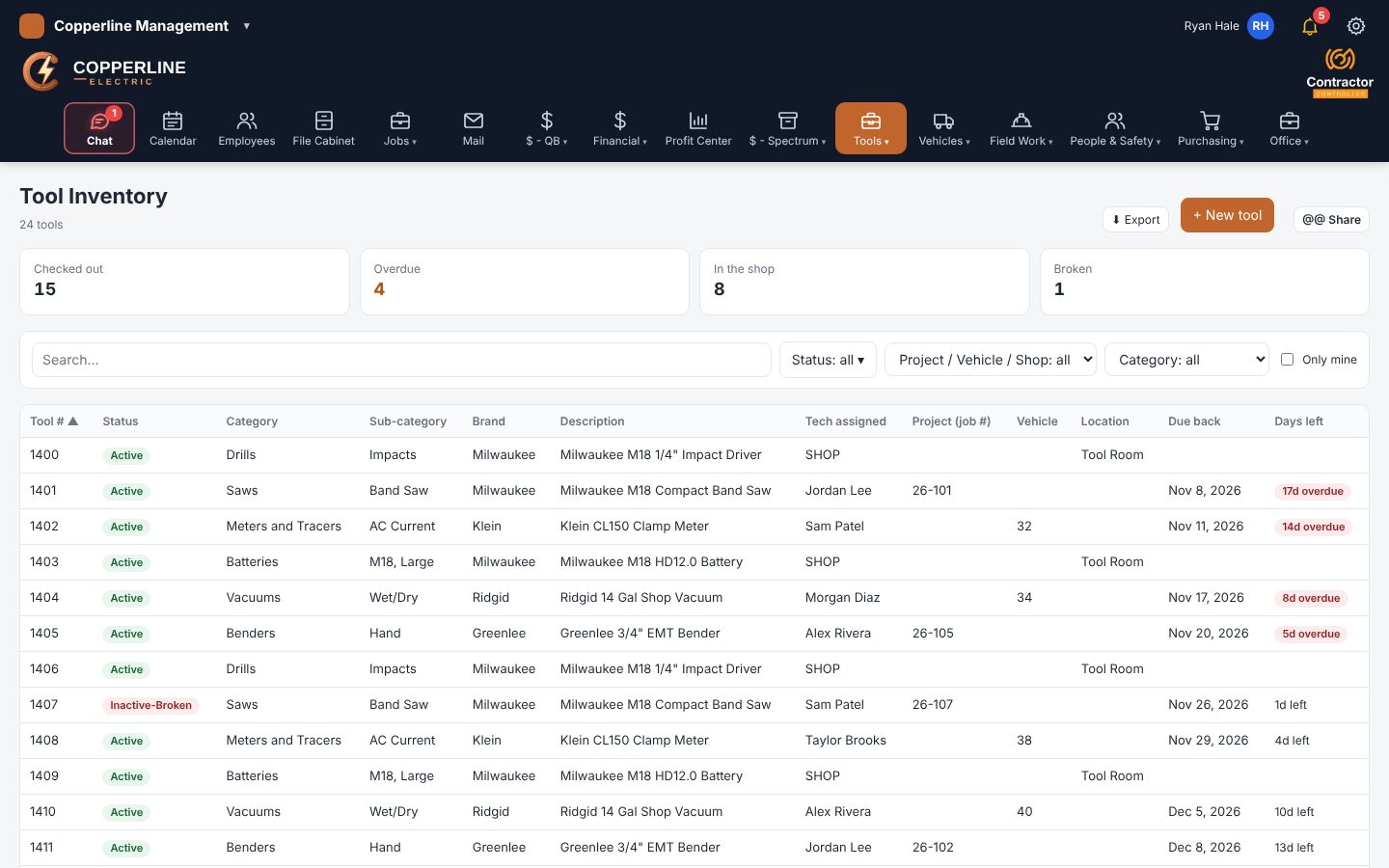
- Request a toolField app > Tools > Tool Requests / Returns. Then approve it in Management > Tools.
- Click an amount in A/RManagement > $ - QB > A/R. Click any balance to see the invoices behind it.
- Open a job in ElectricBooksManagement > Financial. Look at contract, billing, cost and WIP for one job.
- Check job marginsManagement > Profit Center. Switch between Job View and Group View.
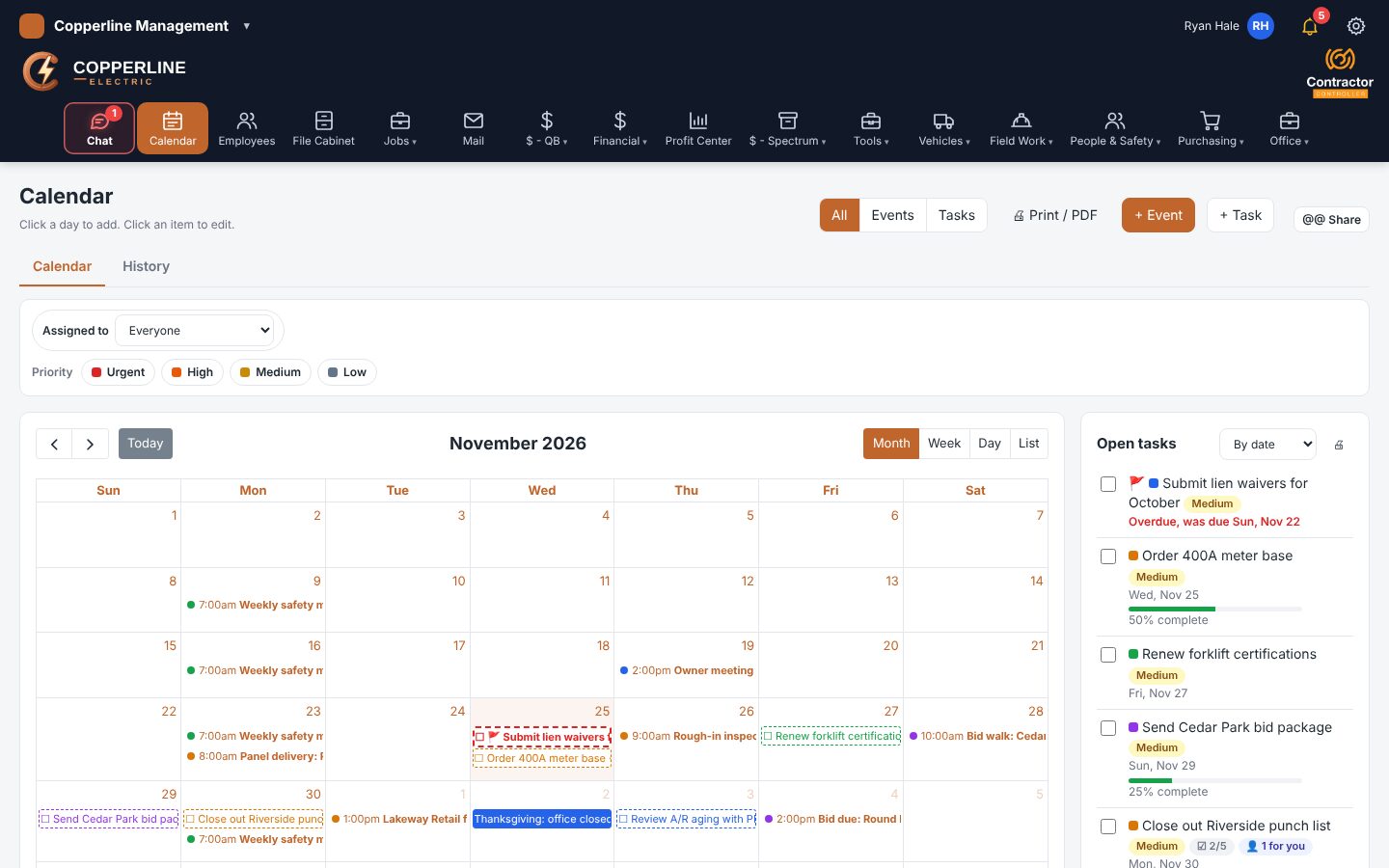
- Assign a task to two peopleManagement > Calendar > + Task. Type names to add people and pick a priority.
- Sign an SOPField app > SOPs. Read it and sign off, then see it on the sign-off tracker.
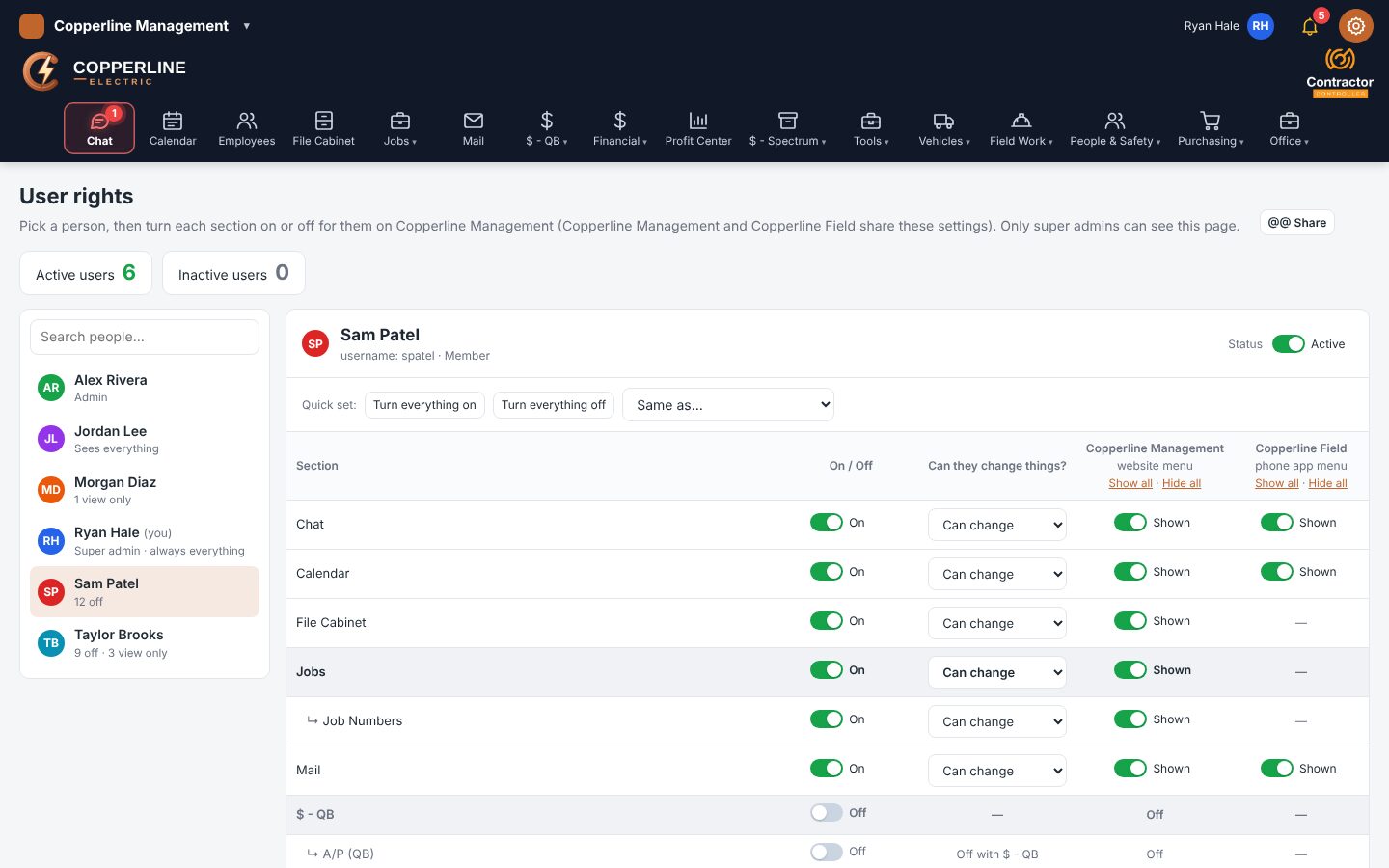
- Compare two loginsLog in as Sam Patel, then as Jordan Lee. Notice which menus disappear.
Inside the demo
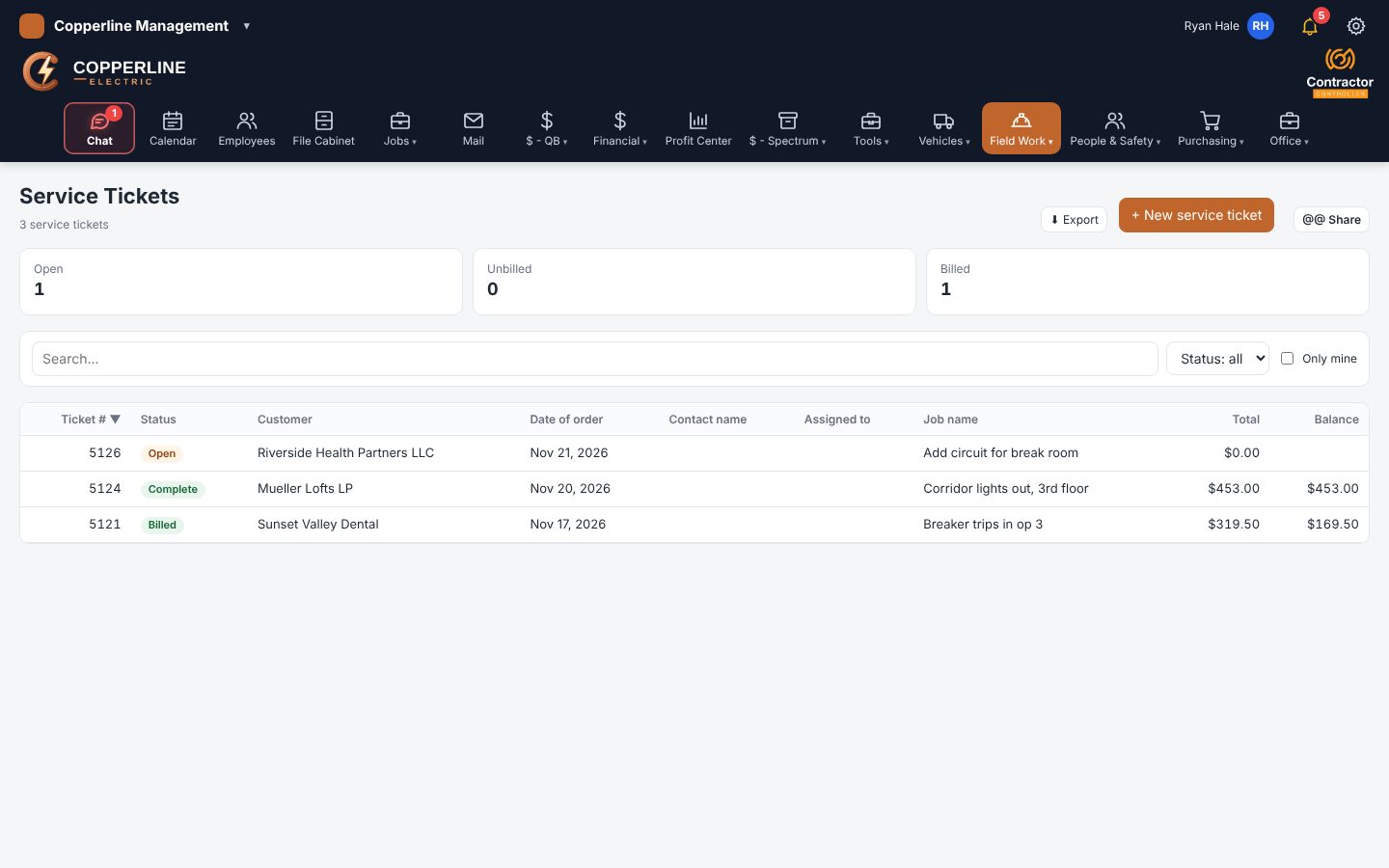
A few screens from Copperline
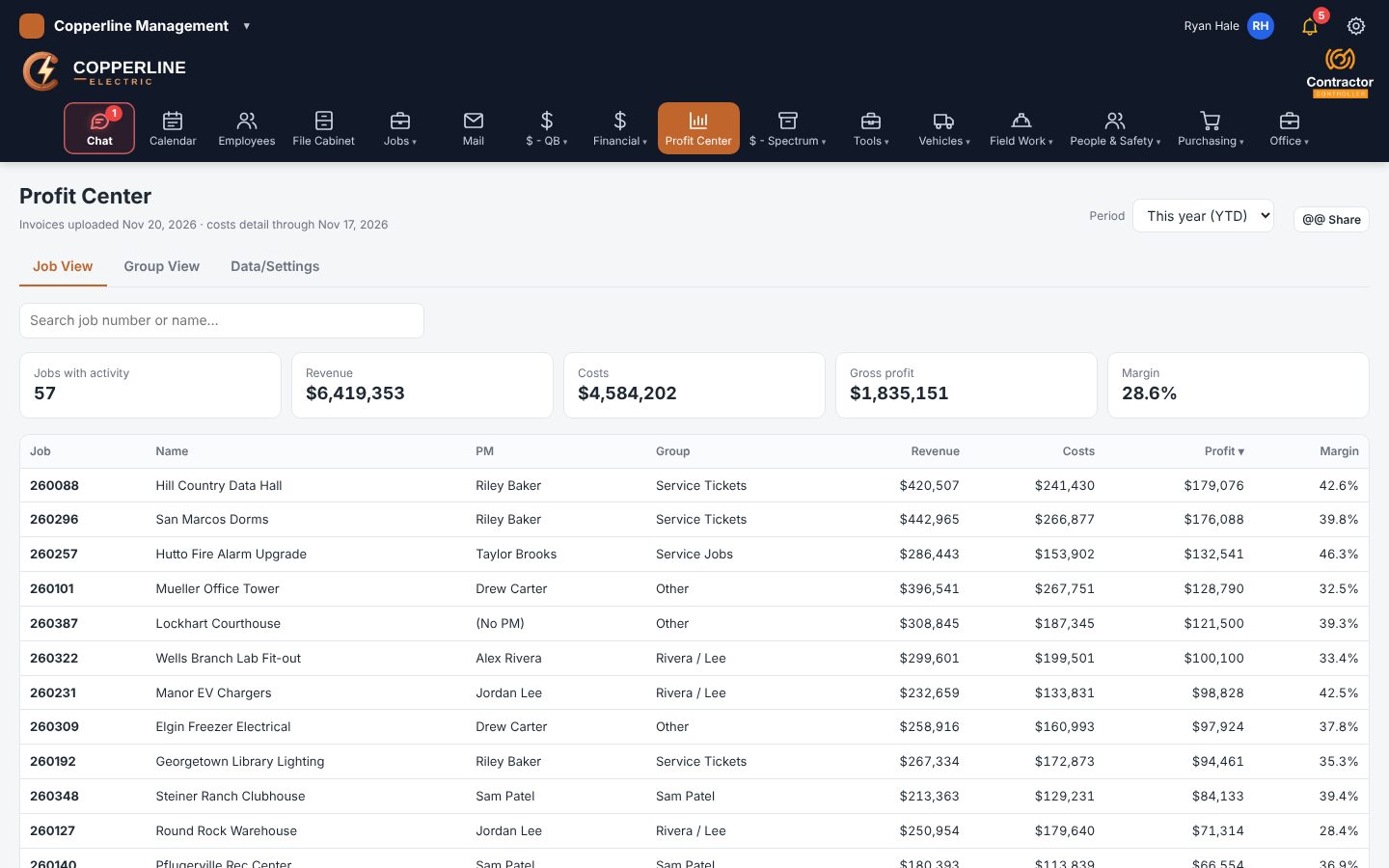
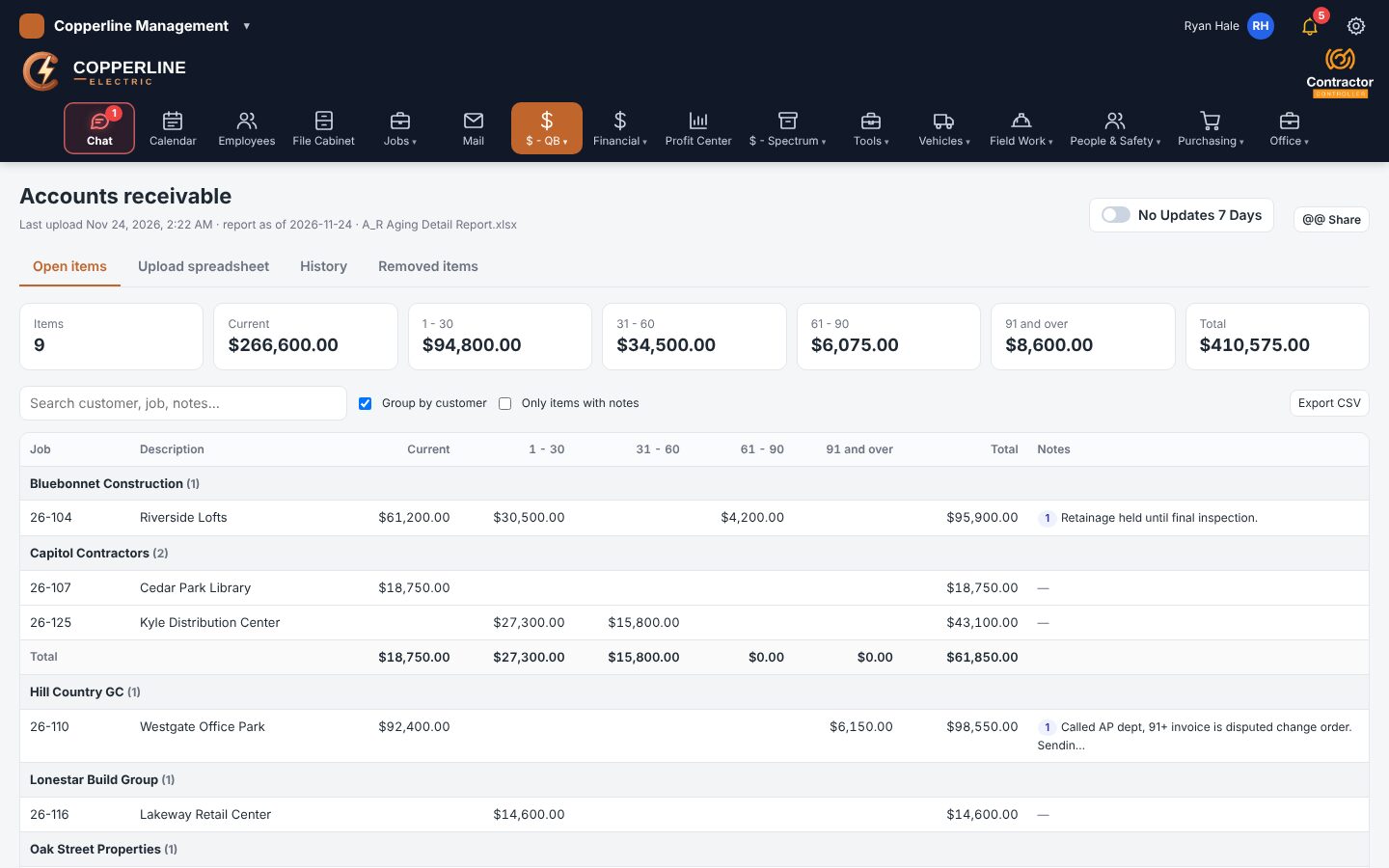
Ready when you are
See it with your own jobs in mind.
Click around the live demo, or book 30 minutes and we will walk you through it.